
In This Article
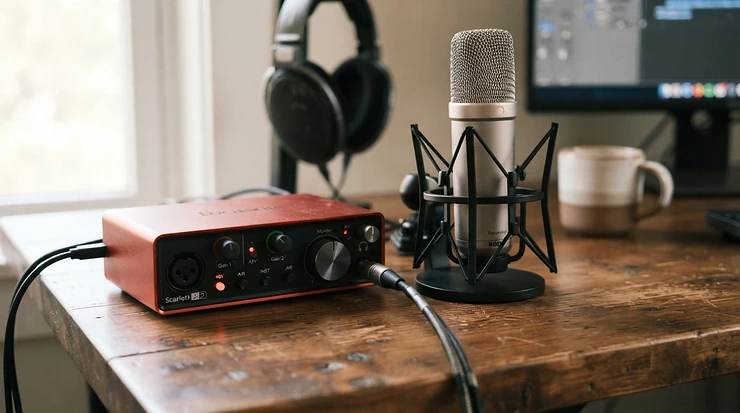
Viewers will forgive a soft webcam. They won’t forgive a mic that fights your game audio, a Discord friend who vanishes into the mix, or music that suddenly doubles in volume. An audio interface with loopback for streaming solves this. It takes your microphone and your computer’s playback sound and blends them into one clean feed your streaming software can grab. 🎙️
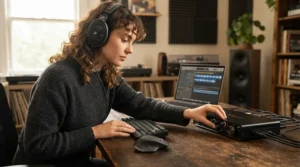
The idea is older than Twitch. Loopback is the hardware cousin of the virtual audio cable concept: a playback endpoint wired internally to a recording endpoint, so sound from one app arrives in another. A loopback audio interface for live streaming keeps that routing in the interface’s driver or onboard mixer. That tends to be steadier than stacking software cables on a PC that is already busy rendering a game.
There’s a catch, and it’s the reason this guide exists. “Loopback” on a spec sheet can mean very different things. On one box it’s a single stereo return with no mixing. On another it’s a full streaming audio interface with virtual mixer, several virtual audio channels and a separate stream bus. Pick the wrong tier and you’ll either overpay or hit a wall the first time a guest joins your call.
Below you’ll find seven real products from budget to premium, plain-English analysis of what each spec means in practice, and a hands-on-style walkthrough of OBS audio routing. We also cover how to build a headphone monitoring mix that doesn’t leak into your broadcast. Everything here comes from manufacturer specs, retailer listings and published reviews. Prices are ranges only, so check current pricing before you buy.
Quick Comparison: Best Loopback Audio Interface for Live Streaming
Here is the whole field at a glance. Loopback styles differ more than the marketing suggests, so read the second column carefully.
| Product | Loopback / Mixing Style | Mic Inputs | Price Range | Best For |
|---|---|---|---|---|
| Focusrite Scarlett Solo 4th Gen | One stereo loopback, software mix | 1 | Around $130-$170 | Solo streamers on a tight budget |
| Focusrite Scarlett 2i2 4th Gen | Stereo loopback with selectable modes | 2 | Roughly $180-$230 | Best all-rounder for most streamers |
| MOTU M2 | Driver loopback channels, no mixer app | 2 | Around $170-$200 | Clean preamps, minimal fuss |
| Yamaha URX22C | 3 stereo loopback plus streaming mix bus | 2 | Low-to-mid $200s | DSP effects and flexible routing |
| Yamaha AG06MK2 | Hardware mixer with loopback | 2 | Around $200-$260 | Faders, buttons and OBS-certified workflow |
| RØDECaster Duo | 7-channel mixer, 4 faders and 3 virtual | 2 | Roughly $500-$600 | Streamers who want a standalone console |
| RØDECaster Pro II | 9-channel mixer, dual USB | 4 | Roughly $700-$1,000 | Multi-guest and two-PC setups |
Looking at the table, the two Focusrite models and the MOTU M2 give you loopback and clean preamps at the lowest cost, but you do the mixing in software. The Yamaha URX22C and Yamaha AG06MK2 add onboard mixing logic. The two RØDECaster units are standalone consoles that happen to work as interfaces.
The price gap between a roughly $150 interface and a roughly $700 console is about workflow, not sound quality. You’re paying for physical faders, extra virtual audio channels and the ability to run a show without alt-tabbing.
💬 Just one click — help others make better buying decisions too!😊
Top 7 Audio Interface With Loopback for Streaming: Expert Analysis
1. Focusrite Scarlett Solo 4th Gen — simplest way into loopback
This is the lowest-friction entry point on the list. It pairs one XLR mic preamp and a Hi-Z instrument input with 24-bit/192 kHz converters and a claimed 120 dB dynamic range, over USB-C.
The loopback channel is stereo and, by default, carries only your computer’s output (Playback 1-2). Focusrite’s own support documentation explains that to put your voice into that return you enable “Send Direct Monitor Mix to Loopback” in Focusrite Control 2 preferences. That’s a small step, but it explains why newcomers often hear game audio and no mic. The Solo also has just one stereo output pair, so its loopback works differently from the bigger Scarlett models.
On paper, this suits a single-mic streamer who wants clean gain, Air mode for vocal presence and a three-year warranty. It is not a fit if a co-host will ever share the desk. Retail listings I found carried only a handful of short, positive reviews, which is too thin to call a verdict. The broader Scarlett 4th Gen line, however, shows up constantly in streaming buying guides.
Pros:
- ✅ Dead-simple setup with Focusrite Control 2
- ✅ Clean preamp and wide dynamic range
- ✅ Compact, bus-powered, USB-C
Cons:
- ❌ Only one mic preamp
- ❌ Software-only mixing, no hardware faders
Price range: around $130-$170. Strong value if you’re a one-mic broadcaster.
2. Focusrite Scarlett 2i2 4th Gen — best all-rounder for hybrid streams
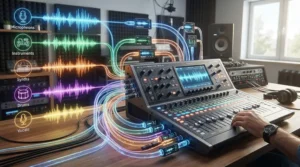
Two combo inputs, Auto Gain, Clip Safe and Air mode make this the usual default recommendation, and loopback is part of what earns it that status. It uses the same stereo loopback channel as the Focusrite Scarlett Solo 4th Gen, but a Focusrite Control 2 update added three loopback modes. They let you tailor what reaches streaming and chat apps without changing your direct monitor mix.
That last point matters more than it sounds. Some streaming and communication apps only read the first input channel. Focusrite says 2i2 owners can now combine inputs 1 and 2, so those apps hear both voices. You can read the details in Focusrite’s loopback support guide.
Custom Direct Monitor mixes on 4th Gen units also give you a respectable headphone monitoring mix with near-zero latency. That’s helpful when you want game audio quieter in your ears than in the broadcast. The trade-off is real: there are no knobs for individual sources, so every channel adjustment happens on screen. Reviewers on retailer pages describe it as stable and good value, though those samples are small.
Pros:
- ✅ Two preamps with Auto Gain and Clip Safe
- ✅ Flexible loopback modes in Focusrite Control 2
- ✅ Strong driver stability across Mac and Windows
Cons:
- ❌ No physical faders for live adjustments
- ❌ Must mute the loopback channel in recording software
Price range: roughly $180-$230. For most streamers, this is the value sweet spot.
3. MOTU M2 — loopback with the least software baggage
The MOTU M2 is the minimalist’s choice. It has two combo inputs, bus-powered USB-C, a full-color LCD with metering, and a 120 dB dynamic range via an ESS Sabre32 Ultra DAC. Its driver adds loopback channels, so computer output can come back into your streaming app alongside your mic.
Sound On Sound’s review noted there is no mixing or monitoring software. Instead, you pick “Loopback Out” as an app’s output and “Loopback In” as an input in OBS or vMix. That is brilliantly simple, and it saves fussing with virtual cables. It also means any level balancing happens inside OBS, not on the interface.
Latency is a selling point: the manufacturer cites about 2.5 ms round-trip. Note the driver nuance: retailers list the Mac driver as optional for that figure and for loopback. Owner reviews on a Canadian retailer page are mixed. Several praise the preamps and DAC, while a few report units failing after roughly two years. With only nine reviews, treat that as a flag to buy from a store with a good return policy, not a verdict.
Pros:
- ✅ Very low driver latency, about 2.5 ms
- ✅ Full-color LCD metering for every input
- ✅ Loopback works without extra routing apps
Cons:
- ❌ No onboard mixer or effects
- ❌ A few owners report long-term reliability issues
Price range: around $170-$200. Excellent if you prefer to mix inside OBS.
4. Yamaha URX22C — three stereo loopback channels plus DSP
Where the Scarlett and MOTU give you one loopback return, the Yamaha URX22C gives you three stereo loopback channels. Its mixer handles two mono inputs, three stereo loopbacks and an effects return, with a dedicated streaming mix bus alongside the main mix.
In plain terms, you can route game, chat and music as separate virtual audio channels. Then you balance them in dspMixFx so your headphone feed and your stream feed differ. That is the core appeal of a streaming audio interface with virtual mixer designs. The onboard DSP includes a gate, compressor, ducker and reverb, so your voice is processed before it reaches the computer.
You also get two D-PRE preamps, 32-bit/192 kHz audio, MIDI and Elgato Stream Deck integration for dspMixFx. The learning curve is steeper than the Scarlett’s, and the mixer app asks for patience. As a newer model, it has few long-form reviews in my research. A Japanese retailer’s customer review praised its sound and monitoring stability compared with an older Yamaha unit, but that is one data point.
Pros:
- ✅ Three stereo loopback channels for separate sources
- ✅ Onboard DSP with gate, compressor and ducker
- ✅ Dedicated streaming mix bus
Cons:
- ❌ dspMixFx takes time to learn
- ❌ Limited independent long-term review data
Price range: low-to-mid $200s. Great value for control-minded streamers.
5. Yamaha AG06MK2 — real faders and an OBS-certified workflow
Not everyone wants to click on faders. The Yamaha AG06MK2 is a 6-channel streaming mixer with a USB interface, two mic inputs with phantom power, a loopback function and a mute button for quick breaks. It includes a 4-pole mini (TRRS) input/output so a phone or console chat can join the mix.
Yamaha lists the AG-series as OBS certified devices and sponsors OBS, which helps if you want a combo known to behave. The AG Controller app offers Simple and Detail modes, and one-touch effects cover compression/EQ, reverb and an amp simulator. For a solo streamer who wants knobs under their hands, that physical control is the whole story. The 24-bit/192 kHz 2-track recording is a bonus.
User feedback is generally positive, with one caveat. A Sweetwater reviewer praised the loopback as convenient for mixing computer audio with voice. A reviewer on Japan’s Soundhouse noted audible white noise on the monitor output, with the amount varying by jack type. That’s worth testing in your return window if you’re sensitive to hiss in your headphone monitoring mix.
Pros:
- ✅ Physical faders and a mute button
- ✅ Loopback plus TRRS input for phone audio
- ✅ OBS-certified device status
Cons:
- ❌ Some users report hiss on the monitor output
- ❌ Larger desk footprint than a 2×2 interface
Price range: around $200-$260. A solid mixer-style budget buy.
6. RØDECaster Duo — compact console with seven channels
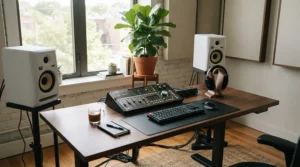
Think of the RØDECaster Duo as a mixer that happens to be an interface. It has two combo inputs with Revolution preamps, seven assignable channels (four on physical faders, three virtual) and six programmable pads. Bluetooth and a wireless receiver for Rode Series IV transmitters round out the connectivity. It runs at 24-bit/48 kHz, which matches what streaming video expects.
The virtual channels are the point. USB, Bluetooth and pad audio can each get their own strip, with Aphex processing on every channel. Mix-minus on the Bluetooth and USB channels keeps remote guests from hearing their own echo. That’s a genuine step up from a simple loopback return for anyone running interviews.
Tom’s Hardware gave it an Editor’s Choice, and MusicTech scored it 9 out of 10, noting reliable build quality and a responsive touchscreen. Reviewers also flag a learning curve for the touchscreen workflow. It’s overkill if you only stream solo gameplay, but excellent if guests, samples or a phone call are part of your show.
Pros:
- ✅ Four physical faders plus three virtual channels
- ✅ Mix-minus for remote guests
- ✅ Bluetooth and wireless mic receiver built in
Cons:
- ❌ Considerably pricier than 2×2 interfaces
- ❌ Touchscreen menus take time to learn
Price range: roughly $500-$600. Worth it only if you use the extra channels.
7. RØDECaster Pro II — premium control for multi-guest shows
The RØDECaster Pro II is the big sibling. It brings four combo inputs, nine assignable channels (six on physical faders, three virtual), eight programmable pads and four headphone outputs. A quad-core audio engine and Aphex processing handle the heavy lifting.
Its party trick is dual USB-C interfaces. Sound On Sound highlights that it can serve two computers or phones at once, which suits a streaming PC plus a gaming PC. It also records multitrack audio to microSD, USB storage or a computer, so you can stream a processed mix while capturing unprocessed tracks for later editing. That is real production value, not just louder knobs.
The cost is scale. It is heavy, at about 1.95 kg, and prices in the retail listings I found spanned a wide band, so shop around. For a solo streamer, it’s more than needed. For a podcast-style show with a co-host, a guest and a second PC, it’s the cleanest answer on this list.
Pros:
- ✅ Four mic inputs and four headphone outputs
- ✅ Dual USB interfaces for two computers
- ✅ Multitrack recording while streaming
Cons:
- ❌ Large and expensive for solo use
- ❌ Fixed 48 kHz operation
Price range: roughly $700-$1,000. Premium, but justified at multi-guest scale.
What Is an Audio Interface With Loopback for Streaming?
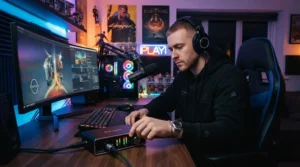
An audio interface with loopback for streaming is a USB sound device that sends your computer’s playback audio back into itself as a virtual input. Your streaming software then captures that sound alongside your microphone. This lets you broadcast game audio, music and chat in one mix without extra cables or software.
Those virtual returns are what people mean by virtual audio channels. On a basic interface there’s one stereo pair, often labeled Loopback or Loopback 1-2. On a streaming audio interface with virtual mixer designs, such as the Yamaha URX22C or the RØDECaster Pro II, there are several. You can keep chat, music and game sound on separate faders.
Why does this matter? Without loopback, OBS must capture “Desktop Audio” as one lump. You can’t turn the music down without turning the game down, and a guest’s voice rides along at whatever level the call app chooses.
Loopback lets you pre-mix those sources before the stream ever sees them. The practical benefits are cleaner levels, easier recovery when something goes wrong and a headphone monitoring mix that can differ from what your audience hears. The trade-off is another layer of routing to understand, which is exactly what the setup section below walks through.
How to Choose the Right Audio Interface With Loopback for Streaming
- Count your voices. One mic means a solo-input interface works. Add a co-host and you need two preamps at minimum, or four if guests join in person.
- Check how many loopback returns you get. Two to three virtual audio channels let you separate game, chat and music. A single stereo return forces you to pre-mix in software.
- Decide where you want to mix. Prefer knobs? Look at the Yamaha AG06MK2 or a RØDECaster. Happy with a screen? The Focusrite and MOTU models are cheaper.
- Confirm your operating system. The MOTU M2‘s loopback depends on its driver, and Mac support has nuances. Verify before you buy.
- Look at monitoring. A good headphone monitoring mix needs its own level controls and ideally a separate stream bus.
- Weigh the software. dspMixFx, Focusrite Control 2 and Rode’s touchscreen each have different learning curves.
- Think about growth. A cheap interface that you replace in six months costs more than the right one now.
Features That Actually Matter (And Those That Don’t)
Spec sheets love big numbers. 192 kHz sample rates look impressive, but streaming platforms mostly work with 48 kHz audio. The RØDECaster units run at 48 kHz because that’s the video-production norm, and nobody calls them inferior. OBS-oriented guides also recommend matching sample rates across Windows, your mic and OBS to avoid sync drift.
What does matter? Preamp gain for dynamic mics, which are common in streaming because they reject room noise. Driver stability is next, since a dropout mid-stream costs viewers. Third is routing flexibility: how many virtual audio channels you get and whether the stream mix is separate from your monitor mix.
Features worth a second look include Auto Gain, which saves fiddling at the start of a stream. Onboard DSP is another, because a gate and compressor before the computer keep keyboard clatter and loud laughs out of the mix. A hardware mute button, found on the Yamaha AG06MK2, is a small luxury that saves awkward moments.
Features you can mostly ignore are headline bit depths beyond 24-bit, bundled DAW licenses you won’t open, and voice-changer effects. MIDI ports matter only if you play keys on stream. Spend your budget on routing, preamps and reliability instead.
Hardware Loopback vs Virtual Audio Cable Software
Before dedicated loopback hardware, streamers relied on software cables. Programs such as Virtual Audio Cable create paired endpoints inside Windows so one app can feed another. They work, and they’re often cheaper.
| Factor | Hardware Loopback Interface | Software Virtual Cable |
|---|---|---|
| Setup | Driver-level, usually one-time | Manual per-app configuration |
| Stability | Tied to interface driver | Depends on OS audio stack |
| Mixing | Onboard or companion app | Needs extra mixer software |
| Cost | Interface purchase | Free or low-cost software |
| Best For | Streamers wanting reliable routing | Tinkerers on a very tight budget |
The table shows why hardware wins for most people: fewer moving parts. A Focusrite Scarlett 2i2 4th Gen or MOTU M2 replaces cable software and a preamp in one purchase, and the routing survives reboots.
Software cables still make sense if you already own a mic interface without loopback. They’re also useful for exotic routing, such as sending one app’s sound to two destinations. Even then, hardware loopback usually remains the clean path for the main stream feed, with software cables handling edge cases.
How to Set Up OBS Audio Routing With a Loopback Interface
Good OBS audio routing is boring, and boring is the goal. OBS’s own quick start guide covers the basics of choosing audio devices. Here’s the loopback-specific flow:
- Install the interface driver first. Update Focusrite Control 2, dspMixFx or MOTU’s driver before opening OBS.
- Set your sample rate to 48 kHz in the driver, Windows sound settings and OBS Settings > Audio. Matching rates prevents the sync problems described in OBS audio guides.
- Make the interface your default playback device. Game and chat audio then flow through it.
- In OBS, choose your mic. Set Mic/Auxiliary to the interface’s mic input.
- Add the loopback return. Add an Audio Input Capture source and pick the loopback channel. On a MOTU M2, that’s the Loopback input; on Focusrite, it’s the Loopback channel.
- Disable the default Desktop Audio source. If you leave both on, everything plays twice.
- Open Advanced Audio Properties (the gear in the mixer) to assign tracks and set monitoring.
- Mute the loopback channel in any recording software to prevent feedback, as Focusrite recommends.
Test with a short local recording before going live. Speak, play a game sound, and confirm both appear once.
Headphone Monitoring Mix: Build One That Doesn’t Leak Into Your Stream
A headphone monitoring mix is what you hear. The stream mix is what viewers hear. Keeping them separate is a pro habit, and most of these interfaces support it.
On Focusrite 4th Gen units, Direct Monitor mixes let you set input and computer-audio levels independently, with near-zero latency, as Focusrite describes in its Control 2 updates. The Yamaha URX22C goes further with a dedicated streaming mix bus. On a RØDECaster, headphone outputs have their own controls and even separate colors.
A practical recipe: keep your own voice slightly louder in the headphone mix than feels natural, so you don’t shout. Pull game audio down by a few steps, since you hear it directly from the game. Keep chat guests clear and forward.
Then compare against the stream mix in OBS using the meters, not your ears alone. Within OBS, use “Monitor Only” for sources you want to hear without sending to the stream, and “Monitor and Output” for those that should go to both.
The most common failure is leaving direct monitoring on while also monitoring through OBS, which creates a faint echo or comb-filter effect. Choose one monitoring path and stick with it.
Real-World Scenarios: Matching Interfaces to Streamers
Here are three typical profiles, with reasoning from the specs rather than invented testing.
The solo gamer on a $200 budget. One dynamic mic, game audio and occasional music. The Focusrite Scarlett Solo 4th Gen covers the mic and loopback in a pocket-sized box. If a friend might join your desk later, step up to the Focusrite Scarlett 2i2 4th Gen for the second preamp.
The just-chatting streamer with guests on calls. Remote guests need clean separation, and you need to hear them without echo. The Yamaha URX22C‘s three loopback channels let you put the call on its own virtual channel, so you can adjust it independently. If you want physical faders, the Yamaha AG06MK2 with its TRRS input can bring a phone call into the mix.
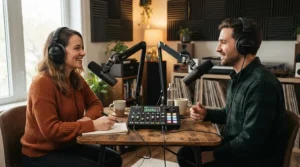
The two-PC podcast-style show. One PC games, another streams, plus a co-host in the room. That calls for the RØDECaster Pro II: four mic inputs, dual USB interfaces and multitrack recording. A RØDECaster Duo can work for one co-host if you can live with two mic inputs.
Notice the pattern. Each step up buys you more separate virtual audio channels, not “better sound.” Start with the profile closest to yours and let growth, not gadget envy, drive the upgrade.
Common Mistakes When Buying an Audio Interface With Loopback for Streaming
Assuming loopback means mixing. On many models it’s only a return path. Without a mixer app, balance happens in OBS. That’s fine if you know it up front.
Buying more inputs than you’ll use. A four-input console for a solo streamer is expensive shelf decoration.
Ignoring the operating system. Some loopback implementations depend on drivers, and platform differences can matter. Confirm Mac or Windows support for the exact feature you need.
Forgetting the double-audio trap. Leaving OBS’s Desktop Audio on while also capturing a loopback channel duplicates game sound. Focusrite also warns that recording software must mute the loopback channel to avoid feedback.
Skipping the return policy check. Retail reviews of some interfaces mention hardware failures after a couple of years, and others mention monitor-output hiss. Buy from a seller with reasonable returns, then test in the first weeks.
Treating high sample rates as quality. Streaming workflows usually run at 48 kHz. Chasing 192 kHz adds file size and CPU load without a viewer-facing benefit.
Overlooking availability. Some once-popular models, like the PreSonus Revelator io24, appear as discontinued or out of stock at certain retailers. Check current availability before building a setup around any single unit.
✨ Don’t Miss These Exclusive Deals!
🔍 Ready to upgrade your streaming audio? Click any highlighted product above to check current pricing and availability. These interfaces will help you build the clean, balanced stream mix your viewers will love!
Problem → Solution Guide for Loopback Streaming Audio
Problem: Viewers hear echo or a doubled voice. Solution: Mute the loopback channel in any recording app, and make sure direct monitoring isn’t also routed through OBS monitoring.
Problem: Game audio appears twice. Solution: Disable OBS’s default Desktop Audio when you add the interface’s loopback return, as described in the OBS audio routing steps above.
Problem: Your mic is missing from the loopback on a Scarlett. Solution: Enable “Send Direct Monitor Mix to Loopback” in Focusrite Control 2 preferences. This is the documented fix for 2i2 and Solo units.
Problem: A streaming app only hears one channel. Solution: On the Focusrite Scarlett 2i2 4th Gen, use the Control 2 option to combine inputs 1 and 2.
Problem: Hiss in headphones. Solution: Try a different monitor jack type, since one Yamaha AG06MK2 reviewer reported the noise level varied with the jack. If it persists, use the return window.
Problem: Lip-sync drift. Solution: Match sample rates across Windows, the interface and OBS at 48 kHz. Then fine-tune with sync offset in Advanced Audio Properties if needed.
Long-Term Cost & Maintenance for Streaming Interfaces
The sticker price is only part of the story. Software ecosystems, warranty and expansion cost matter more over two to three years.
| Product | Price Range | Software / Support | Growth Path |
|---|---|---|---|
| Focusrite Scarlett Solo 4th Gen | Around $130-$170 | Focusrite Control 2, 3-year warranty | Replace if you add a co-host |
| Focusrite Scarlett 2i2 4th Gen | Roughly $180-$230 | Focusrite Control 2, 3-year warranty | Stay until you need faders |
| MOTU M2 | Around $170-$200 | Driver only | Pair with OBS mixing |
| Yamaha URX22C | Low-to-mid $200s | dspMixFx, Stream Deck integration | Strong mid-term hub |
| Yamaha AG06MK2 | Around $200-$260 | AG Controller, 1-year limited warranty (per a retailer listing) | Add a second mixer later |
| RØDECaster Duo | Roughly $500-$600 | Firmware updates, touchscreen | Long-term console |
| RØDECaster Pro II | Roughly $700-$1,000 | Firmware updates, dual USB | Scales with shows |
Looking at the cost picture, the Focusrite Scarlett 2i2 4th Gen and MOTU M2 deliver the lowest cost per capability for solo streamers. The Yamaha URX22C adds the most routing per dollar under $300. The two RØDECaster units look expensive, but if they replace a separate interface, mixer and recorder, the total cost of ownership narrows considerably.
Maintenance is light across the board. Keep drivers and firmware current, avoid mid-stream updates, and keep a backup USB cable. Warranty terms vary, so confirm them with the seller.
Hearing Safety for Long Streaming Sessions
Streaming marathons mean hours in headphones, and a good monitoring setup tempts you to turn things up. The NIOSH recommended exposure limit is 85 dBA over eight hours, with exposure time halving for every 3 dB increase. At 88 dBA that’s four hours, and at 91 dBA it’s two. The agency’s criteria document for occupational noise exposure explains the reasoning.
Practically, set your headphone level on a quiet passage rather than during a loud game moment. Keep it at a comfortable level that lets you hear room sounds like a doorbell. Take short breaks every hour.
Because a well-built headphone monitoring mix lets you balance sources, you can lower the overall level while keeping your voice clear. Interfaces with separate headphone and master volume controls, like the Yamaha URX22C, make this easier. Tinnitus after a session is a warning sign, so treat it seriously and back off the volume.
FAQ
❓ Do I need loopback if I only use one microphone?
❓ Is a streaming audio interface with virtual mixer better than a hardware mixer?
❓ Which interface gives me the most virtual audio channels?
❓ Does loopback work on Mac?
❓ What sample rate should I use for streaming?
Conclusion
Choosing the right audio interface with loopback for streaming comes down to honest answers about your show. If you’re a solo broadcaster, the Focusrite Scarlett Solo 4th Gen or the MOTU M2 gives you clean preamps and a stereo loopback return for a modest budget. If you want flexible routing and a stream bus without leaving the desk, the Yamaha URX22C is the most capable under $300. Prefer hardware faders? The Yamaha AG06MK2 is the budget mixer-style option, while the RØDECaster Duo and RØDECaster Pro II serve streamers whose shows have grown into small broadcast studios.
Remember the larger lesson: more virtual audio channels only help if you’ll use them. Pair your hardware with disciplined OBS audio routing, keep your sample rates matched at 48 kHz, and separate your headphone mix from your stream mix. Then protect your ears, because a great stream shouldn’t cost you your hearing.
The single best move is to choose the tier that fits the show you run today, buy from a seller with a fair return window, and test your routing before your next live session. Prices change and stock moves, so check current availability on any model before committing.
Recommended for You
- [Add your blog post link 1]
- [Add your blog post link 2]
- [Add your blog post link 3]
Disclaimer: This article contains affiliate links. As an Amazon Associate, I earn from qualifying purchases. If you purchase products through these links, we may earn a small commission at no additional cost to you.
✨ Found this helpful? Share it with your friends! 💬🤗
